Tigris · Open-source Android TV launcher

Your TV home screen, worth opening again.

A sunken liquid-glass dock, a Top Shelf that actually plays something, a frosted Control Center one Back press away, and a landscape that changes every day.

  • Android 9+
  • No root
  • Verified on Sony BRAVIA
  • MIT licensed

An independent open-source project. Not affiliated with Apple. Third-party artwork and app icons belong to their owners.

Tigris home screen on a Sony BRAVIA TV: a landscape photo with a glass dock of app icons.

Real capture · Sony BRAVIA XR-55A80J · Android TV 12 1280 × 720

Verified on Sony BRAVIA Standard and guard APKs Home guard, no stock launcher disabled No root, reversible

Before / After

Drag to reveal the difference.

The left side is an illustration of the before state, not a capture of the same TV. The right side is a real capture from Tigris on a Sony BRAVIA. Drag the divider.

Tigris home screen, real capture.
Illustration of a generic Android TV grid, not a real screenshot.
Before Illustration · not the same TV
After Tigris · real capture
Drag, click, or focus the handle and use ← →. Hold Shift for larger steps; double-click to reset. The before image is an illustration.

Features

Designed for ten feet, not for a phone.

Bigger focus, fewer layers, quieter glass — drawn again for the room instead of scaled up from a handset.

01LIQUID GLASS DOCK

A dock that sinks into the picture

The first row sits on a sunken glass plate; the next row shows only its top edge. Press Down to reveal every app, or leave the screen to the wallpaper.

  • Five 16:9 rounded tiles, scaling and tilting with a soft shadow on focus
  • Long-press to edit, then move tiles into the dock with the D-pad
  • Blur, edge refraction and highlights are precomputed per wallpaper on the CPU
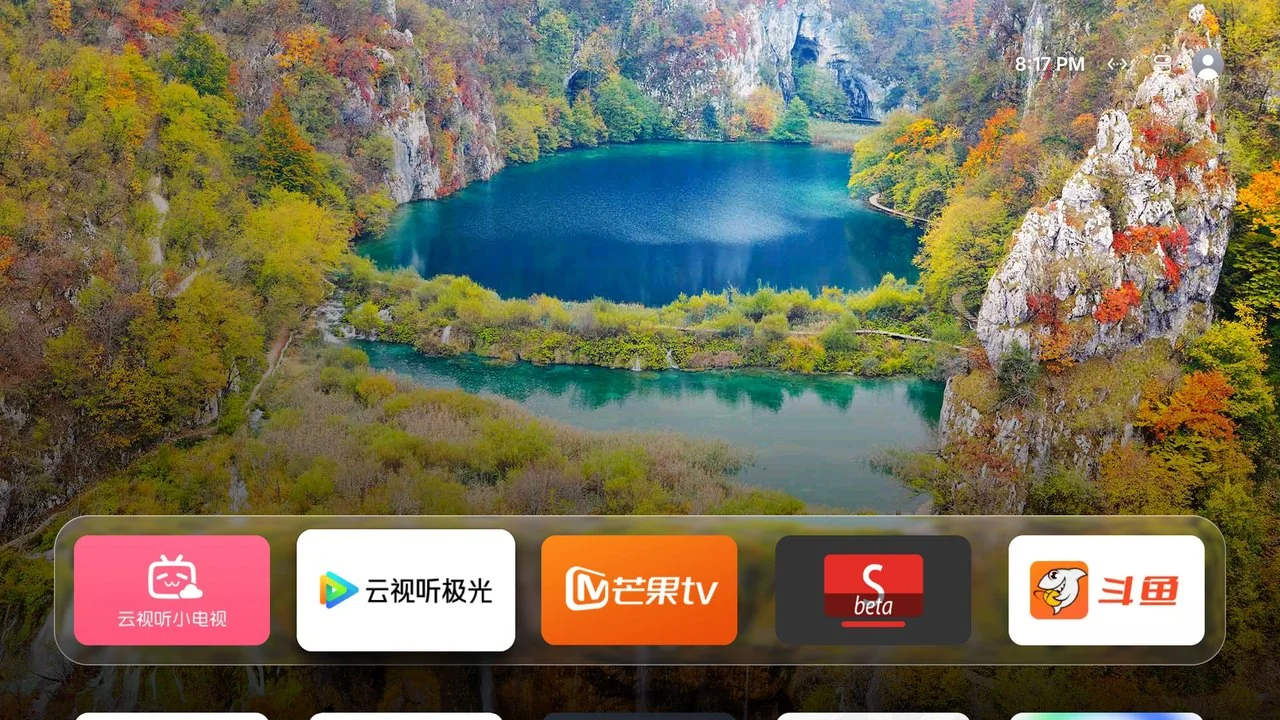
Liquid-glass dock on the Tigris home screen.
Home screen · Sony BRAVIA capture

02TOP SHELF

Focus an app, and the top half starts living

For supported dock apps, the upper half cycles through what is actually on: live streams, trending videos, not a static poster.

  • Bilibili trending videos through the 云视听小电视 TV app
  • Live rooms on Douyu
  • Read from the services' public web endpoints; no account needed
Top Shelf showing a Bilibili video above the dock.
Top Shelf · Bilibili trending

03CONTROL CENTER

One Back press away

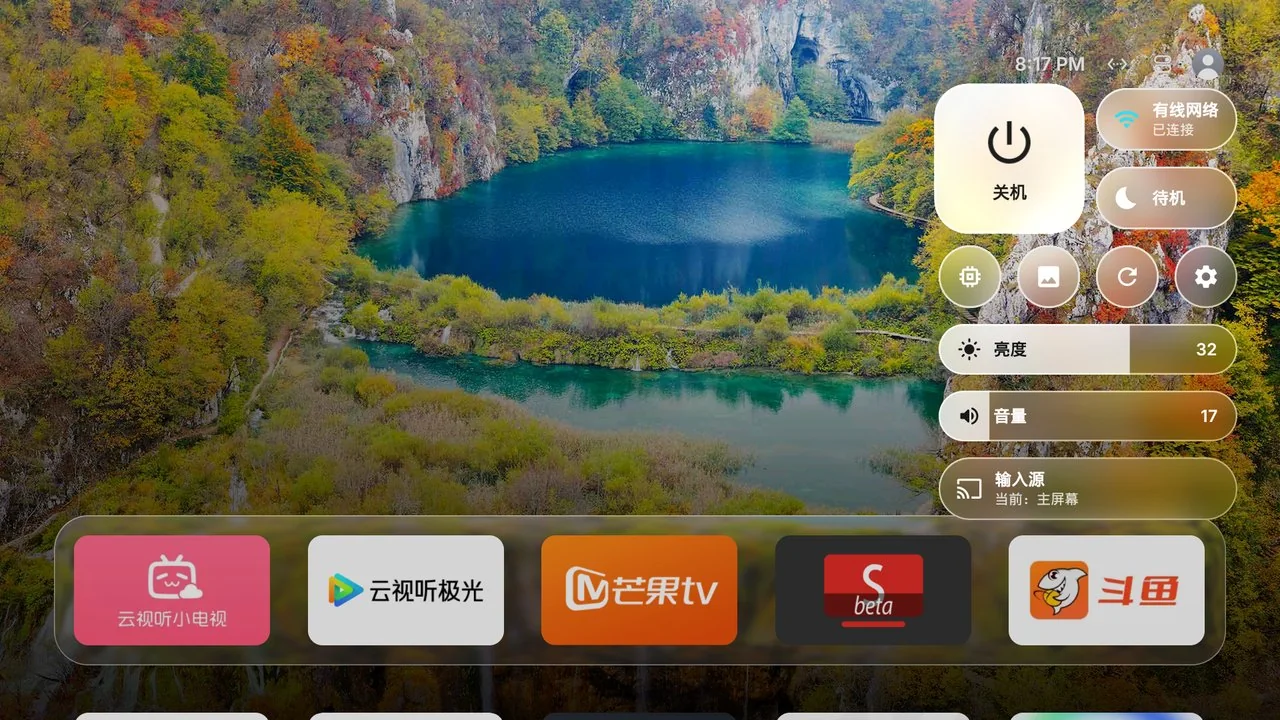
No enclosing panel — just floating liquid-glass controls over a live blur of the wallpaper. Network, standby, power, restart, memory, photo frame, settings, plus brightness, volume and HDMI input where the TV exposes them.

  • Android 12+ reuses a shared GPU blur layer; older systems sample the wallpaper
  • On Sony BRAVIA, brightness, TV volume and input status go through the TV's own API
  • Power features become available after the one-time on-device ADB authorization
Frosted Control Center with power, network, brightness and volume controls.
Control Center · floating glass controls

04WALLPAPER & FRAME

When the TV is quiet, make it a window

Bing daily landscapes, all-ages Wallhaven favourites, photos uploaded from a phone, your own image links, or a colour gradient — rotating every 15 minutes to once a day.

  • The frame slowly pans and zooms, moving the clock to protect OLED panels
  • Optional Apple TV aerial films, falling back to photos when offline
  • Set it as the system screensaver after 1–30 minutes of idle time
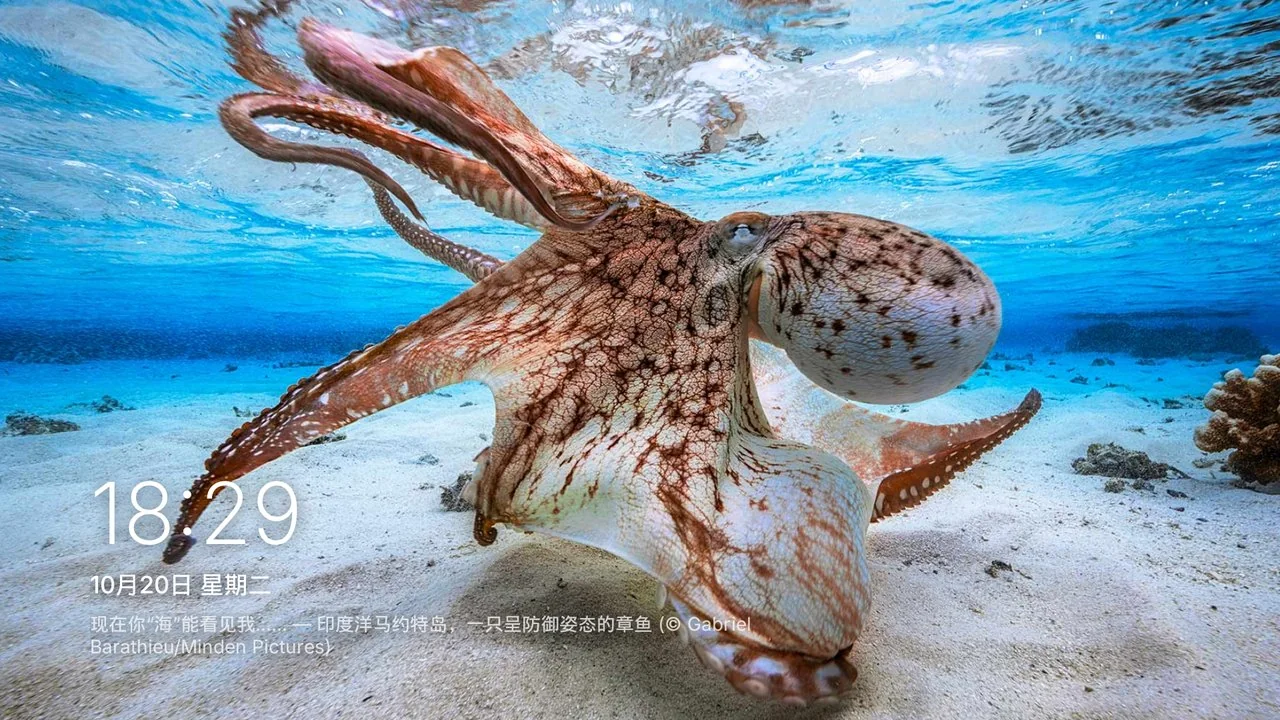
Photo-frame screensaver with an underwater octopus photo and a clock.
Photo frame · Bing daily photo

Install

Two commands, or one capable agent.

You need a computer on the same Wi-Fi as the TV, the TV's IP address, and ADB debugging enabled. Android 9+, no root.

Before you start: enable ADB debugging on the TV. The first connection shows “Allow USB debugging?” — tick Always allow and accept. Install Android SDK Platform-Tools on the computer (winget install Google.PlatformTools on Windows).
Enabling ADB debugging by brand
TVHow to enable ADB
Xiaomi / RedmiSettings → About → Product model: press OK until developer mode is on. Then Settings → Accounts & security: enable ADB debugging and Install unknown apps.
TCL / FFalconSettings → About → Device info: press Up, Down, Left, Right within one second. A More group appears; enable ADB.
Sony BRAVIASettings → System → About → press OK on Build seven times. Then Settings → System → Developer options → USB debugging.
Stock Android TV / Google TVSettings → Device Preferences → About → press Build seven times. Then enable USB debugging (sometimes “Network debugging”).

Sony BRAVIA

The fully verified path, including brightness, TV volume and HDMI input status. Replace 192.168.x.x with the TV's IP.

  1. Connect

    adb connect 192.168.x.x:5555
    adb -s 192.168.x.x:5555 get-state
  2. Install the standard build

    curl -L -o Tigris.apk https://github.com/lesnolie/Tigris/releases/latest/download/Tigris.apk
    adb -s 192.168.x.x:5555 install -r Tigris.apk
    adb -s 192.168.x.x:5555 shell cmd package set-home-activity com.leslie.tvhome/.HomeActivity
    adb -s 192.168.x.x:5555 shell input keyevent KEYCODE_HOME
  3. Grant what only ADB can grant

    P=com.leslie.tvhome
    adb -s 192.168.x.x:5555 shell pm grant $P android.permission.WRITE_SECURE_SETTINGS
    adb -s 192.168.x.x:5555 shell cmd notification allow_listener $P/$P.RevivalListener
    adb -s 192.168.x.x:5555 shell appops set $P SYSTEM_ALERT_WINDOW allow
  4. Register BRAVIA IP control (optional)

    The TV shows a four-digit PIN; use it in the second command.

    BODY='{"method":"actRegister","id":1,"version":"1.0","params":[{"clientid":"tvhome:1","nickname":"TVHome","level":"private"},[{"value":"yes","function":"WOL"}]]}'
    curl -s http://192.168.x.x/sony/accessControl -d "$BODY"
    curl -s -u ":PIN" http://192.168.x.x/sony/accessControl -d "$BODY"
  5. Verify

    adb -s 192.168.x.x:5555 exec-out screencap -p > tv.png

Let an AI agent do it

Send this to an agent that can run commands (Codex, Claude Code, and similar). It will follow the repository's AGENTS.md, install, grant permissions and verify.

Install Tigris on my TV by following https://github.com/lesnolie/Tigris/blob/main/AGENTS.md. The TV IP is 192.168.x.x and the brand is ____. If brightness, volume or HDMI input do not work, please adapt them too.

Never power off or reboot the TV remotely without asking. A TV that is off can only be turned back on with its remote.

Compatibility

What your TV can actually do.

Tigris tries the brand API first, then falls back to standard Android. This is the current boundary, not marketing.

Android 9+ · standard and guard builds behave identically apart from the home declaration
FeatureAny Android TVOn-device debugSony BRAVIA only
Home screen, dock, glass, shadowsYes——
Top Shelf (Bilibili / Douyu)With the matching TV app——
Landscape / anime wallpapers, frameYes——
Control Center, clockYes——
Memory cleanupCache onlyKills background apps—
Remove preinstalled apps—Yes—
Standby, power off, restart—Yes—
Frame as system screensaver, idle time—Yes—
Volume sliderAndroid standard—TV volume
HDMI input switchingMost TVs—Plus input status
Brightness sliderXiaomi, after ADB grant—Yes
Home guard, revival after killOne-time ADB grantYes—
Verified scope: fully tested only on a Sony BRAVIA XR-55A80J (Android TV 12). TCL / FFalcon and Xiaomi support is ported from community device notes and has not been verified on every firmware. Behaviour can differ.

FAQ

Before you install.

Does it need root? Will it void my warranty?

No root and no system partition changes. The standard build only sets itself as the default home screen through ADB and requests a few permissions an ordinary app cannot get.

Warranty terms are up to the manufacturer, so we cannot promise anything there. The real risk comes from misusing ADB commands, such as disabling the Xiaomi stock launcher. Follow the guide and keep the undo commands at the end of the Chinese guide.

Why must I not disable the Xiaomi stock launcher?

PatchWall (com.mitv.tvhome) is enforced by a system whitelist. After disabling it, the fallback home also refuses third-party launchers, leaving a black screen.

Tigris uses a home guard instead: when the stock launcher comes to the front, Tigris returns within about half a second. No system app is disabled or removed.

TCL says INSTALL_FAILED_VERIFICATION_FAILURE

TCL's verifier rejects every adb install. Use Tigris-guard.apk and push it through the TV's own T-Cast (多屏互动) service; the commands are in the TCL tab above.

If port 6553 is unreachable, that model has no T-Cast service. Push the APK to /sdcard/Download/ and install it with a file manager on the TV.

Does the home guard read my screen or notifications?

No. It watches window changes only, to notice when the stock launcher comes forward. The notification listener exists solely so Android can rebind Tigris after it is killed, and it reads nothing.

How do I update or uninstall?

Update with adb install -r over the existing app; settings and layout are kept. To uninstall, turn the guard off first, restore the original screensaver, then adb uninstall com.leslie.tvhome. Re-enable any stock launcher you disabled.

The full command list is in the Chinese guide.

Is this affiliated with Apple?

No. Tigris is an independent open-source project, not affiliated with or endorsed by Apple, Sony, Xiaomi, TCL, Bilibili or Douyu. The design language is inspired by tvOS but includes no Apple code, fonts or assets. “Apple TV” and related marks belong to their owners.

Get Tigris

Make the TV worth turning on tonight.

Download the APK, enable ADB, and follow the guide or hand it to an agent. Android 9+, no root, reversible.